
Genesis - The Revolution on Moodle Themes
Getting Started
Thanks for your purchase! We really glad for you.
Welcome to revolution of Moodle.
Genesis is a theme created by Ararazu (themeforest.net/user/ararazu).
Genesis was 100% tested and worked in Moodle 2.5.
For start we will give some tips to you
- In the Moodle config.php file, add line $CFG -> defaulthomepage = 1 for set My Homepage the default page after login.
- Before use Genesis settings panel, activate the Moodle Theme designer mode in Site administration -> Appearence -> Themes -> Theme Settings. If this not activated the colors not will change.
Theme Resources
- Revolution Moodle 2.5 Theme;
- Skeleton Grid;
- Cross-Browser (tested on Chrome, Firefox, IE8+, Opera and Safari);
- Three color schemes;
- Parallax Content Slider + 5 background patterns;
- Exclusive frontpage with Featured Courses and Exclusive LinkBox with more than 25 icons;
- Exclusive footer modules resources;
- Exclusive login page;
- Nice search bar on header;
- 13 social media icon;
Credits - Thanks for:
- http://tympanus.net/Development/ParallaxContentSlider/
- http://tympanus.net/Tutorials/ExpandingSearchBar/
- http://tympanus.net/Tutorials/CaptionHoverEffects/
- http://subtlepatterns.com/
- http://www.getskeleton.com/
License:
This Moodle theme is comprised of two parts:
(1) The PHP code and integrated HTML are licensed under the GPL license as is Moodle itself. You will find a copy of the license text in the same directory as this text file. Or you can read it here: http://www.gnu.org/licenses/gpl.html
(2) All other parts of the theme including, but not limited to the CSS code, images, and design are licensed according to the license purchased.
Read about licensing details here: http://themeforest.net/licenses/regular_extended
Some Screens

|
FrontpageMoodle frontpage with blue color. In this screen we can see the slideshow, custom menu, social media icons, featured courses, linkbox and footer modules. |
FrontpageMoodle frontpage with orange color. In this screen we can see the slideshow, custom menu, social media icons, featured courses, linkbox and footer modules. |

|
|
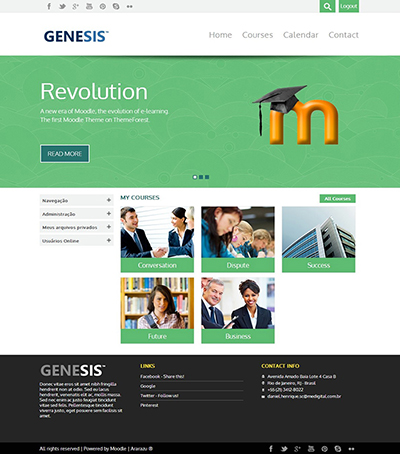
My HomepageThe homepage of user after login, with green color, my courses and the sidebar on left side (can be configurated for left or right side) |
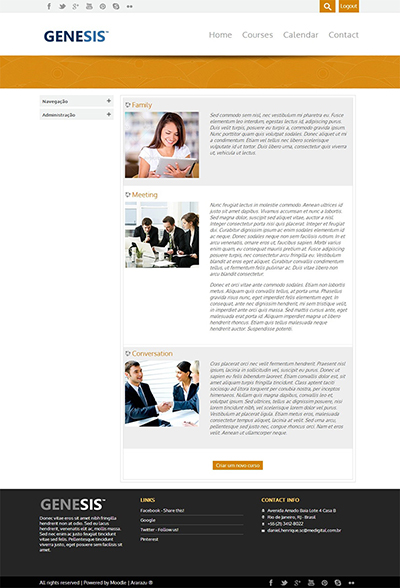
Courses ListPage with list of all courses available and side bar on left side (can be configurated for left or right side) and orange color scheme. |
|
|
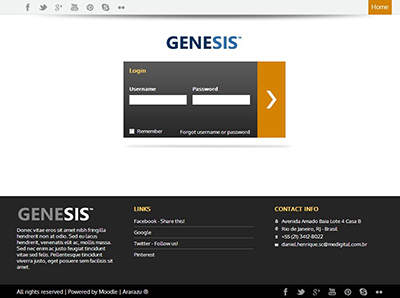
Login PageCustom login page with orange color scheme. |
In CourseInside course page with Genesis custom icons for modules. |

|
|
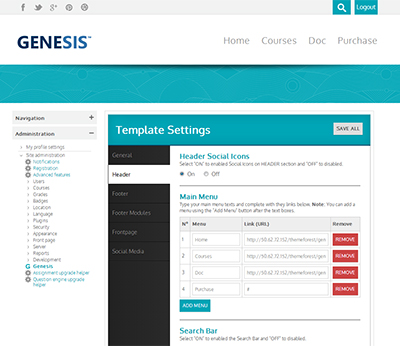
Settings PageCustom settings page with blue color. |
Installing
Install Genesis is so simple. You just need 4 steps and the Genesis will be installed.
1 - Unzip the app/genesis.zip file
2 - Copy the genesis folder and paste on youmoodleroot/theme/
3 - In Moodle will appears a message to install theme, click ok.
So, are just this! Now the Genesis Theme was installed
on your Moodle. You can enjoy the new experience on Moodle.
Options
Now you will learn to personalize the Genesis of your mode.
First, always before you open Genesis Settings Panel, you should activate the Moodle Theme Designer Mode.
You can do this in: Site Administration -> Appearence-> Theme -> Theme settings and activate the Theme Designer Mode. After your use the Genesis Panel you can desactivate the Theme Designer Mode for more performance.
You can access the Genesis Settings Panel at Site administration -> Genesis or Site administration -> Appearance -> Theme -> Genesis.
The Genesis Settings Panel is divided in 6 categories:
- General
- Header
- Footer
- Footer Modules
- Frontpage
- Social Media
General
Layout Style
The color scheme of your Moodle. You have three options: Blue, Orange and Green.
Below you can see the colors of this schemes.
| Blue | |||
|---|---|---|---|
| Color 1 | Color 2 | Color 3 | Color 4 |
| #00A5B6 | #003050 | #0094A3 | #CADD09 |
| Orange | |||
|---|---|---|---|
| Color 1 | Color 2 | Color 3 | Color 4 |
| #D58303 | #5F6366 | #C28425 | #FED060 |
| Green | |||
|---|---|---|---|
| Color 1 | Color 2 | Color 3 | Color 4 |
| #5DBB71 | #27736F | #4F9F60 | #EDDC2A |
Logo URL
Use a external link for include your logo image. Recommended size (200x70).

Favicon URL
Use a external link for include your favicon image. Recommended size.
Sidebar
Position of Moodle blocks side-bar on general pages. Options: Left or Right.

Header
Header Social Icons
Select if the social icons will show on header. Options: On or Off.

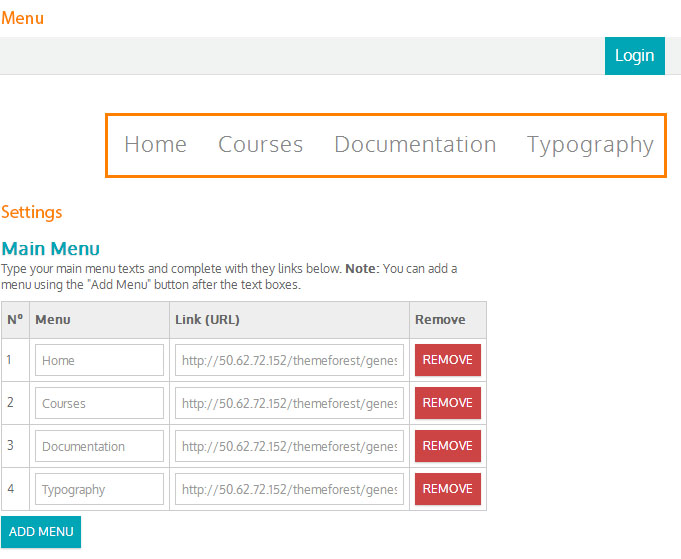
Main Menu
Configure your Main Menu.
You can click in Add Menu to add one more link.
It's recommended in max around four/five links in menu.
You should fill Menu text and Link.
Search Bar
Select if the search bar will show on header. Options: On or Off.

Footer
Select Modules
You have three spaces on the footer to use the exclusive Genesis Footer Modules.
Here you choose the modules for each space: Module 1 (left), Module 2 (center) and Module 3 (right).
In the Footer Modules section we will be say about the Footer Modules.

Footer Text/Copyright
The text who will be show on left side of footer end.

Footer Social Icons
Select if the social icons will show on footer. Options: On or Off.

Footer Modules
Footer Modules are an exclusive resource of Genesis.
With this, you have three spaces to set the Genesis Footer Modules who you want.
In version 1.0 you have four differents modules, but soon new modules will be released.
Below will be presented each modules and your settings.
With About Us you can set an Logo URL and an text about you. This is so good for you present any information to visitants or anyone.
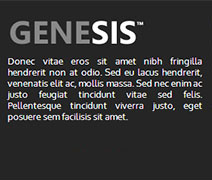
Use an Image (URL):
Use a external link for include an image. Recommended size (200x70).
Description:
The text will show on About Us.
Links
With Links you can show your prefered links on footer.
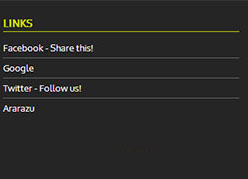
Links:
Configure your Links.
You can click in Add Link to add one more link.
It's recommended in max around seven/eight links.
You should fill Link title and Link URL.
Contact Info
With Contact Info you can share your contact infos like Address, Phone Number and E-mail.

Address:
Your address.
City:
Your City.
Phone Number:
Your Phone Number.
E-mail:
Your E-mail.
Image
With Image you can use an image on footer as some feature of your business

Image Title:
Title of your message.
Image URL:
URL of image. Max height: 150px.
Frontpage
Slideshow
Select if the slideshow will show on frontpage. Options: On or Off.
If you select no, a banner with slideshow pattern will appears in frontpage.

Slider Content
Configure your Slider Content.
You can click in Add Slide to add one more slide.
You should fill slide Title, slide URL, slide Description and slide Image URL. Recommended size: 400x280
Background Pattern
Choose a pattern to use as slideshow/banner background.
See the options below:
| Pattern | Blue | Orange | Green |
|---|---|---|---|
| Arches |  |
 |
 |
| Escheresque |  |
 |
 |
| Pinstriped Suit Info |  |
 |
 |
| Waves |  |
 |
 |
| Theme Color |  |
 |
 |
Sidebar
Position of Moodle blocks side-bar on frontpage. Options: Left, Right or None.
Featured Courses
Select if the Featured Courses will show on frontpage. Options: On or Off.

Select you features
Configure your featured courses.
You can click in Add Featured Course to add one more Featured Courses.
You should select the course.
The course's image is the image configurated in Moodle course settings. The recommended size is 220x200.
Link Box
Select if the Link Box will show on frontpage. Options: On or Off.

Link Box Content
Configure your Link Boxes Content.
You can click in Add Link Box to add one more Link Box.
You should fill the title, link, description and select the image icon.
Icons will be detailed at the section Linkbox Icons
Social Media
Here you can choose the social icons who will appears on header and footer when this function are active.
If value of social media is not empty, the social media link will be showed.
The available social medias are:
- RSS
- Dribbble
- Vimeo
- Youtube
- Flickr
- Google+
- Tumblr
- Behance
- Wordpress
Linkbox Icons
 |
 |
 |
 |
 |
 |
 |
 |
 |
 |
 |
 |
 |
 |
 |
 |
 |
 |
 |
 |
 |
 |
 |
 |
 |
 |
 |
Final Notes
We really happy to help you. We working for a more beautiful web.
